
PPT to Video Course in 5 Minutes: Step-by-Step Tutorial (2026)
What is PPT to video course conversion?
PPT to video course conversion transforms static PowerPoint slides into narrated lesson MP4 with animated visuals. You upload a PPTX file; AI generates a narration script from your slide text and speaker notes; your bullet points, tables, and diagrams are re-rendered as animated Motion Boxes (not just slide screenshots). The output is a professional video, not a screen recording of your slides. For Canvas-style hosts, follow MP4 module upload; product entry: PPT to video.
- Input: PowerPoint file (PPTX, up to 100MB)
- Output: Narrated video course (MP4/WebM) with animated knowledge visualizations
- Time: 50-slide deck → 12-minute video course in ~8 minutes
- Cost: Free (1 free video) or $19-49/month
Real Example: Before and After
Before (Traditional Production)
- 50-slide "Introduction to Data Analytics" PPT
- Script writing: 2 hours
- Screen recording (with 3 retakes): 3 hours
- Video editing in Premiere: 4 hours
- Rendering + upload: 1 hour
- Total: 10 hours → 12-minute video
After (X-Pilot)
- Same 50-slide "Introduction to Data Analytics" PPT
- Upload + AI processing: 3 minutes
- Review and edit script: 3 minutes
- Customize branding: 30 seconds
- Export rendering: 1.5 minutes
- Total: 8 minutes → 12-minute video
Tested with an actual university analytics course deck. Timing includes human review of the AI-generated script.
If you're an educator, trainer, or consultant, you have PowerPoint files. years of expertise condensed into slides. The problem: static PPTs don't meet learners' expectations for video content, and traditional video production takes 4-10 hours per 10-minute video (scripting, recording, editing, rendering). Most solo creators can't afford that time or the $500-3,000 per video a production studio charges.
With X-Pilot's PPT-to-Video, the workflow takes about 5-8 minutes for a typical deck. This guide walks through each step with specific timing, explains the difference between slide-by-slide replay and narrative mode, and covers animation preservation. Related: 2026 tools comparison and PDF to video guide.
The 5-Step Workflow
Total time: 5 minutes (for a 30-slide PPT → 10-minute video)
- Upload PPT (30-60 seconds)
- AI generates script & visuals (2-3 minutes)
- Edit script (1-2 minutes, optional)
- Customize branding (30 seconds)
- Export video (1-2 minutes rendering)
Step 1: Upload PowerPoint File
Log into X-Pilot and drag-drop your PPTX file (up to 100MB). The AI engine parses your PPT's structure: title hierarchy, bullet points, embedded charts, and images: to prepare for video conversion.
Pro Tip: Ensure text in slides is editable (not embedded in images). Preserve speaker notes: X-Pilot uses them to enhance narration scripts.
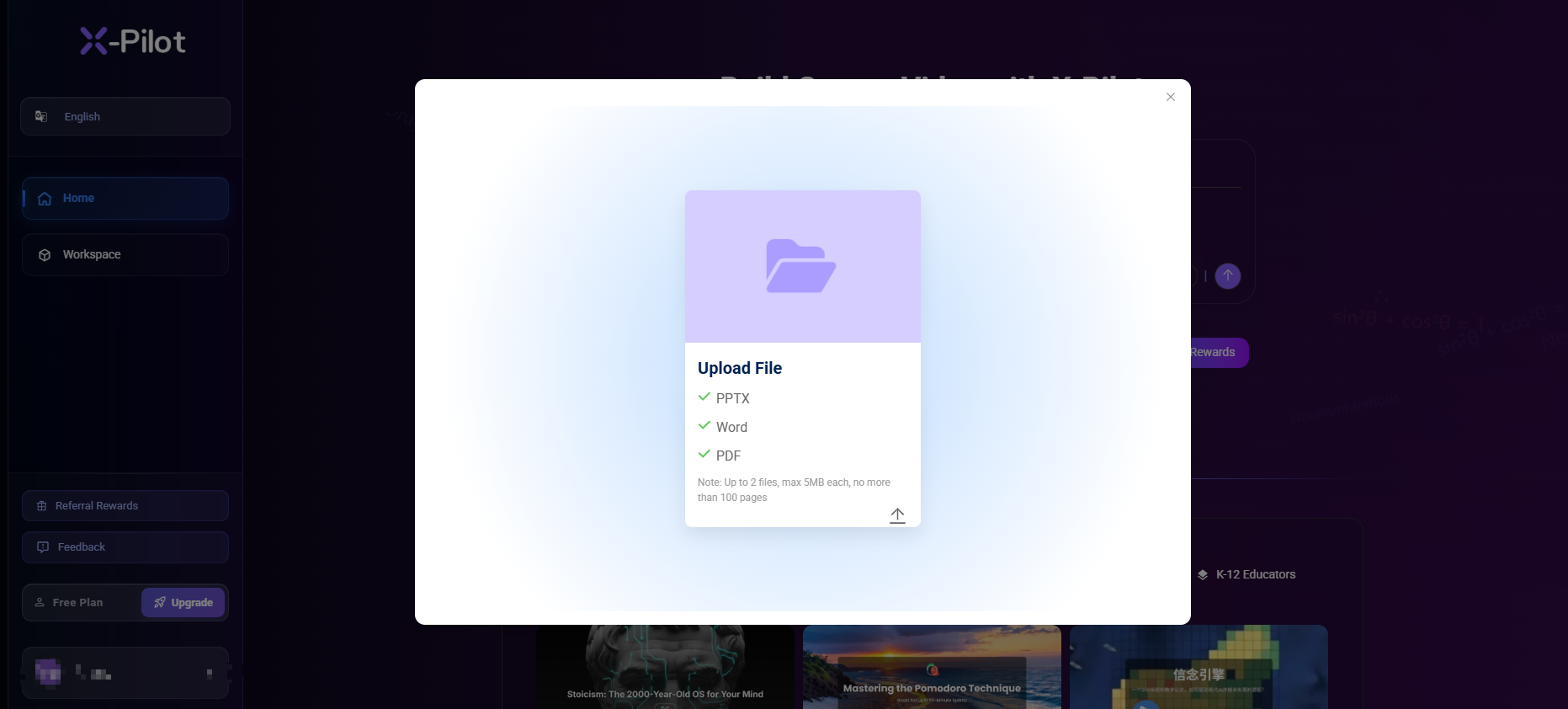
Processing time: 30-60 seconds for a 50-slide PPT
Step 2: AI Generates Video Script & Visuals
Within 2-3 minutes, X-Pilot generates a complete video draft using Bloom's Taxonomy to structure content pedagogically. The draft includes:
- AI Narration Script: Converts slide text into natural-sounding narration (150-170 WPM). Supports 50+ AI voices in 30+ languages.
- Knowledge Visualization: Data tables → animated bar charts. Comparisons → side-by-side diagrams. Processes → flowcharts. Uses 300+ Motion Boxes (not generative AI: zero hallucinations).
- Scene Arrangement: AI sequences scenes based on content flow (intro → concept → example → summary).
Why code-based rendering matters: Unlike generative AI (Sora, Runway), X-Pilot uses deterministic algorithms. If your slide says "TCP has 3-way handshake," the video shows exactly 3 steps: no more, no less, with very low risk of invented steps when the source text is clear.
Step 3: Edit Script with Natural Language (Optional)
This is where X-Pilot outperforms traditional video editors. Use natural language commands to adjust content without re-rendering:
- "Add a comparison table for TCP vs UDP" → Inserts table visual
- "Slow down the intro section by 20%" → Adjusts narration pace
- "Replace this chart with a pie chart" → Swaps visual element
Text edits sync instantly with visuals and narration. Edit time: 30 seconds per change (vs. 5-10 minutes in Adobe Premiere).
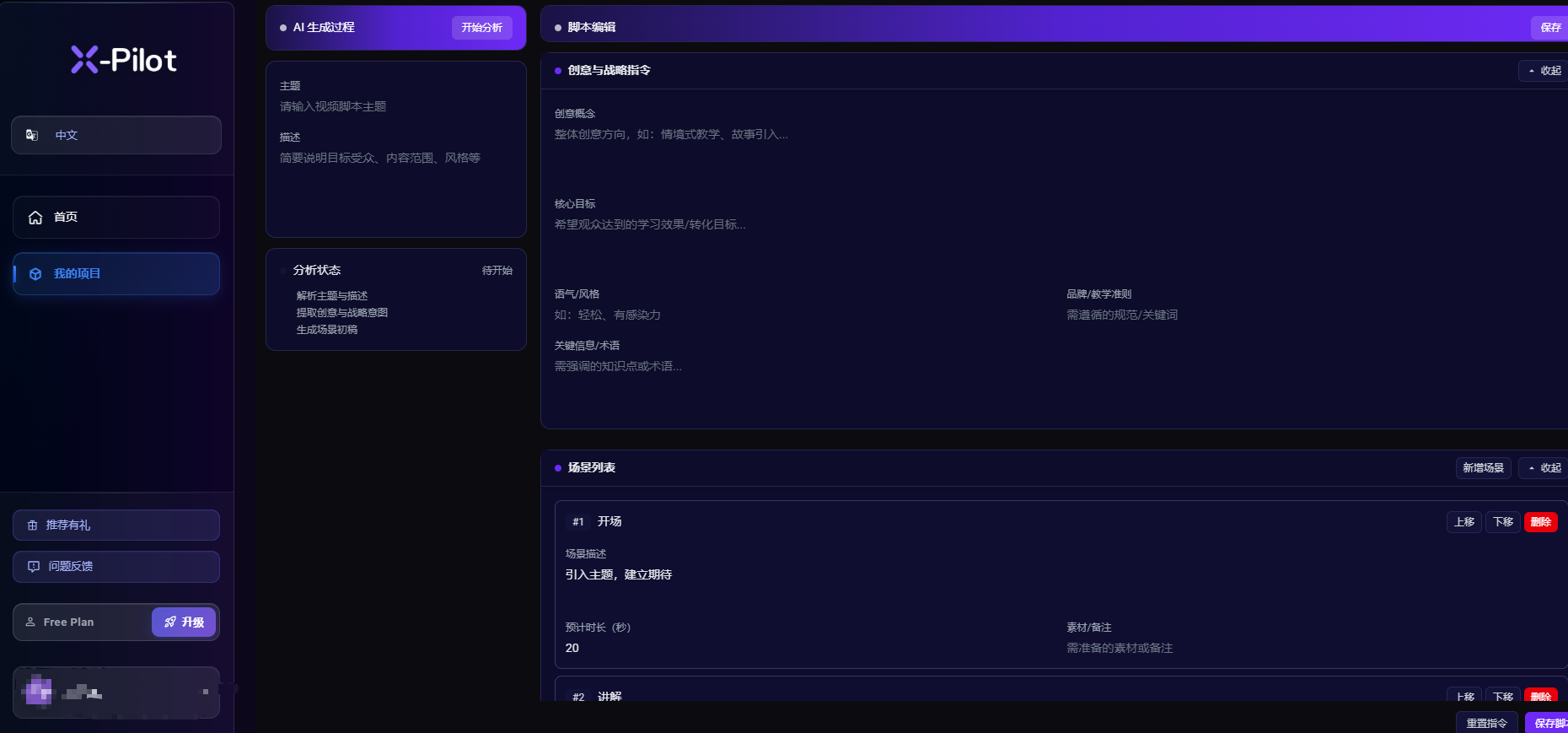
Edit time: 1-2 minutes for typical adjustments
Step 4: Customize Visual Style & Branding
Select from X-Pilot's template library (professional, corporate, academic, creative themes). Upload your logo and adjust brand colors to ensure consistency across your course series.
Enterprise users: Create custom Motion Box libraries for domain-specific visuals (e.g., molecular biology, circuit diagrams, architectural blueprints).
Step 5: Export Video Course
Click "Export" and choose your format:
- MP4 (H.264): 1080p or 4K, optimized for YouTube, Vimeo, LinkedIn Learning
- MOV (ProRes): High-quality editing format for further post-production
- LMS handoff: Upload MP4 per module in Moodle, Canvas, or Blackboard; wrap SCORM separately only if your LMS admin requires packaged tracking
Add subtitles in 30+ languages (auto-generated SRT/VTT). Rendering time: 1-2 minutes for 10-minute videos.
Total workflow: 5 minutes from upload to download. For comparison, traditional video production (scripting + recording + editing) takes 4-6 hours per 10-minute video.
Slide-by-Slide Replay vs. Narrative Mode: Which to Use
X-Pilot offers two approaches to PPT conversion. The right choice depends on your content type and audience.
| Dimension | Slide-by-Slide Replay | Narrative Mode (Recommended) |
|---|---|---|
| How it works | Converts each slide into a video segment with narration read from slide text | AI restructures content into a flowing narrative. reorders, groups, and generates transitions |
| Visual output | Animated version of original slides (preserves your layout) | Re-rendered as Motion Boxes. diagrams, charts, flowcharts optimized for video |
| Best for | Already well-designed slides; compliance/policy decks where layout matters | Text-heavy decks; educational content; when slides are rough notes, not designed |
| Animation handling | Preserves original PPT animations (fly-in, fade, appear) | Ignores original animations; generates new ones optimized for video |
| Narration quality | Reads slide text directly. can sound choppy if text is bullet points | AI rewrites text into natural spoken narration (150-170 WPM) |
| Editing control | Edit individual slide narration | Edit full script as document; natural language commands |
Our recommendation: Use Narrative Mode for most educational content. it produces better learning videos because the AI rewrites bullet points into flowing explanations and generates purpose-built visuals. Use Slide-by-Slide when your PPT slides are already professionally designed and you want to preserve that exact layout.
Frequently Asked Questions
How long does it take to convert a 50-slide PPT to a video course?
About 8 minutes total: 45 seconds for upload and parsing, 3 minutes for AI script and visual generation, 2-3 minutes for reviewing and editing the script, 1.5 minutes for rendering. The output is approximately 12 minutes of video (one slide produces roughly 15-20 seconds of video content, depending on text density). A 20-slide deck produces a 5-7 minute video in about 5 minutes.
Does X-Pilot preserve PowerPoint animations and transitions?
In Slide-by-Slide mode: yes. slide transitions (fade, wipe, push), object animations (fly-in, appear, zoom), and build sequences are preserved. Motion paths are converted to equivalent video effects. In Narrative mode: original animations are replaced with purpose-built video animations optimized for learning (sequential reveal, data highlighting, diagram assembly). Speaker notes are used in both modes to enhance the narration script.
What if the AI-generated script misses key points from my slides?
Edit the script directly. it works like a text document. Add sentences, rewrite paragraphs, adjust emphasis. Every text change syncs with the video visuals and narration in real time. You can also use natural language commands: "add more detail about slide 15" or "emphasize the ROI data." Most users spend 1-3 minutes on script adjustments. For the full editing workflow, see the editable scripts guide.
What video quality and resolution can I expect?
Free tier: 720p (meets Udemy's minimum, fine for most online platforms). Creator ($19/mo): 1080p Full HD. Professional ($49/mo): 4K UHD with 60fps animations. All tiers include professional AI voiceover (50+ voices, 30+ languages) at 150-170 WPM narration speed. The visuals are code-rendered animations, not stock footage. so every chart, diagram, and flowchart is sharp and accurate.
Can I add my company logo, brand colors, and custom fonts?
Yes. Upload your logo (PNG/SVG), set brand colors via hex codes, and choose from 50+ fonts. On Professional and Enterprise plans, save brand templates so every video in your course series uses the same styling automatically. Consultants use this to deliver branded training videos to clients. each client gets their own logo and color scheme applied in seconds.
How much does it cost? What's in the free tier?
Free: 1 free video generation, 720p, no credit card required. Enough to test with one short video.
Creator ($19/month): more generation credits, 1080p, all input formats, all AI voices.
Professional ($49/month): higher monthly credits, 4K, priority rendering.
For context: a freelance video editor charges $30-75/hour, and a 12-minute video from a 50-slide deck takes 8-15 hours of editing = $240-1,125. X-Pilot Professional at $49/month pays for itself with one video. Full pricing details.
What's the difference between this and just recording my screen while clicking through slides?
Screen recording captures your slides as-is. including design limitations, small fonts, and static layouts. X-Pilot re-renders your content as animated knowledge visualizations: bullet lists become sequential animations, data tables become animated charts, process descriptions become flowcharts. The narration is generated from your content (not you reading slides aloud), and there are no mouse cursors, desktop notifications, or recording artifacts. The output looks like a produced educational video, not a slideshow recording.
Can I sell courses made from my PPTs on Udemy or Teachable?
Yes. You own full commercial rights to videos generated from your content. No royalty fees, no watermark on paid plans. Many educators convert their existing lecture PPTs into Udemy courses. a single course priced at $29-99 generates passive income that far exceeds the $19-49/month tool cost. For platform-specific tips, see the Udemy workflow guide.
Turn Your PowerPoint Expertise into Video Assets
Don't let meticulously crafted PPTs collect dust. Transform them into engaging video courses that reach learners on YouTube, LMS platforms, or corporate training portals.
15,000+ creators in 40+ countries · Backed by MiraclePlus
Try X-Pilot Free (No Credit Card Required)